

Access project filters
Perform the following steps to apply filters to the project list.- Select Projects from the left sidebar.
- Filter your projects using the list of available filters in the filter bar.
- Toggle the Advanced option in the filter bar to apply API-style filters.
How filters work
Each filter consists of three parts.- Field: The attribute to be filtered (for example,
Package CountandPlatform Source). - Operator: The comparison logic (for example,
equals,greater than, andin). - Value: The target value to evaluate (for example,
npmand100).
- Filter 1:
Package Ecosystems contains: npm - Filter 2:
Platform Source in: GitHub - Filter 3:
Package Count: greater than 1 - Filter 4:
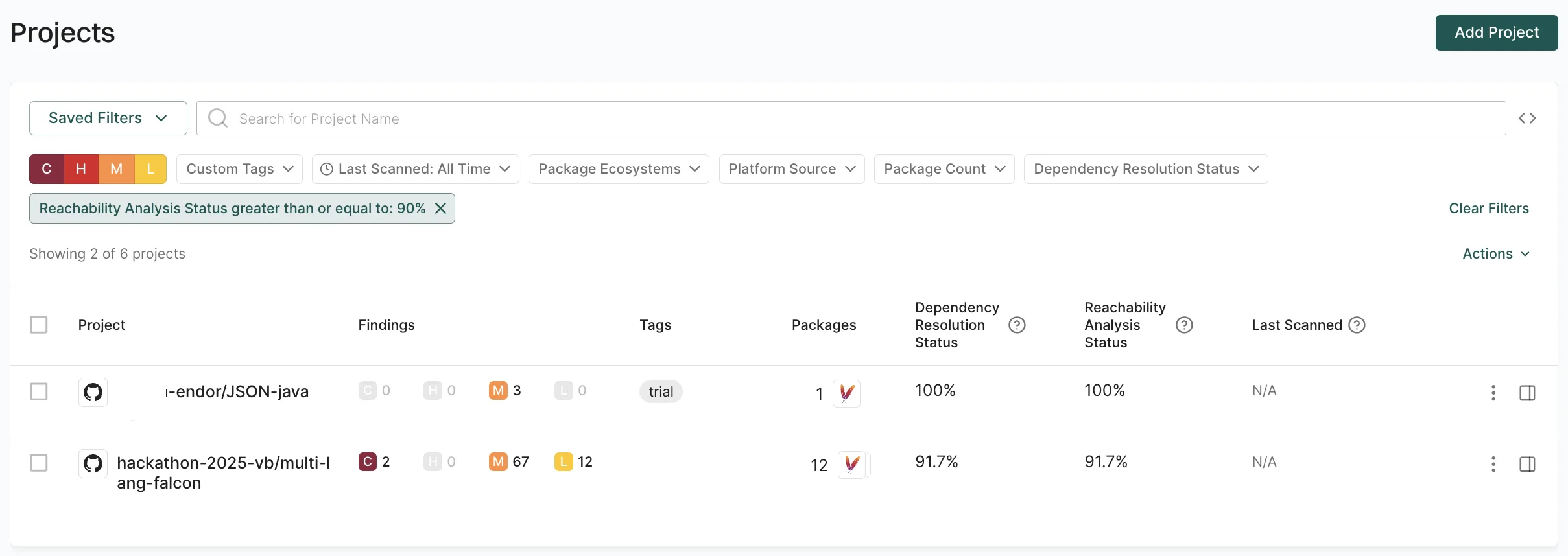
Reachability Analysis Status greater than or equal to: 90%
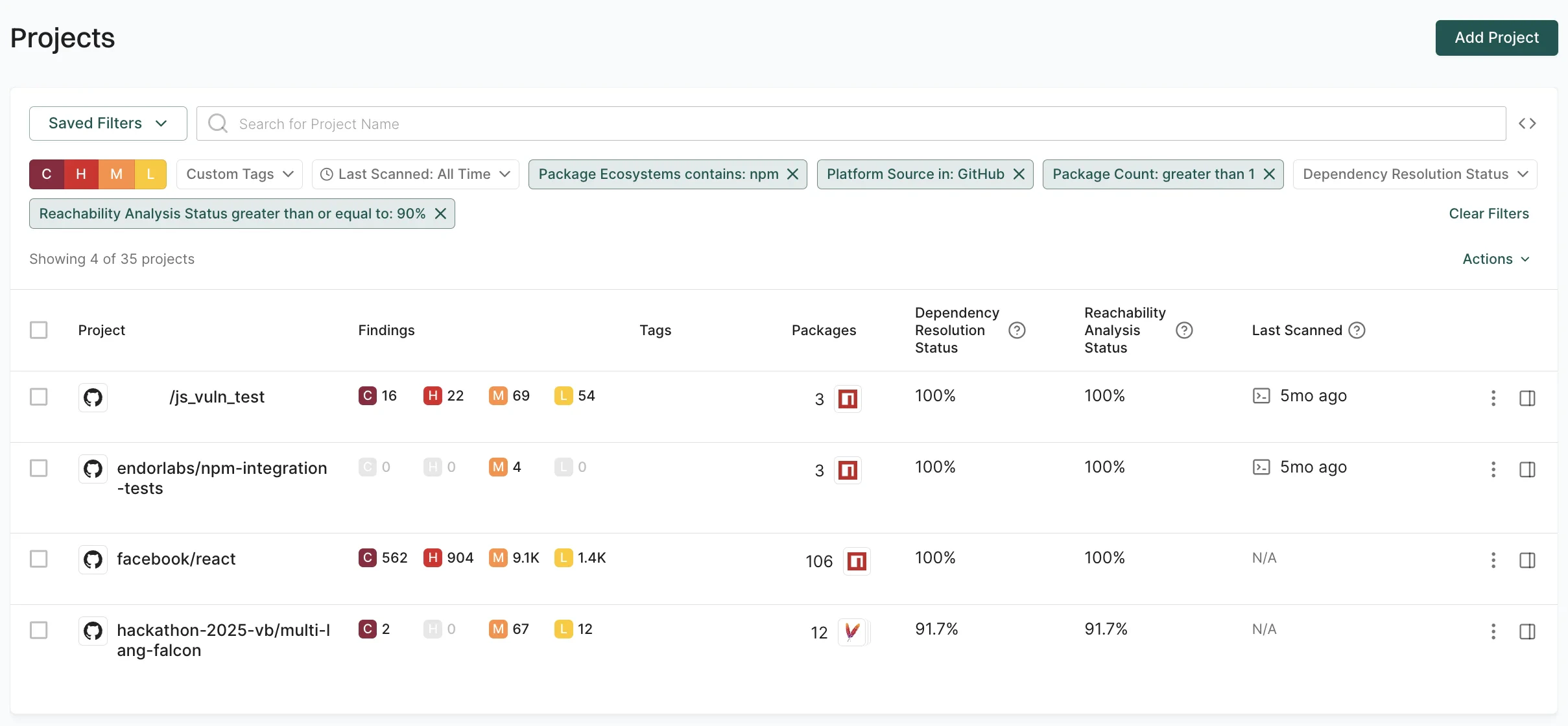
Filter implementation techniques
You can use the following filter types to manage your projects effectively.- Preset filters: Use predefined UI-based filters to quickly segment projects by common attributes.
- Filter projects using API: Use advanced syntax for complex queries and logical combinations.
Preset filters
The following examples demonstrate how to apply preset filters for common project scenarios.Filter projects by custom tags
Use custom tags to filter projects based on environment or predefined labels assigned during project initialization or scan configuration. For example, to view only projects related to SAST, use theCustom Tags contains: sast filter.
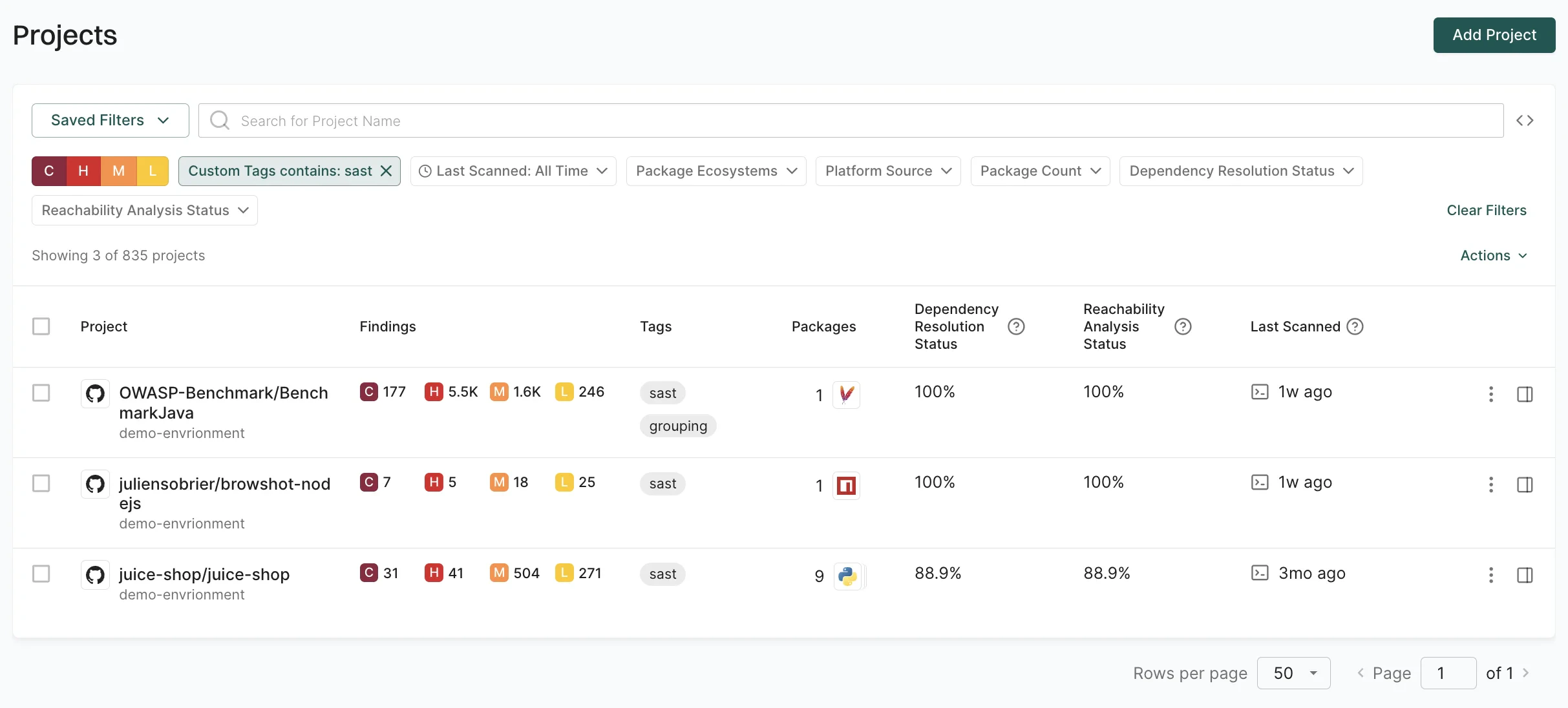
Filter projects by findings severity
Prioritize remediation efforts by filtering projects based on the severity of security findings. You can select from Critical (C), High (H), Medium (M), or Low (L) severity filters to target different priority levels. For example, to identify projects with critical findings, select the C filter.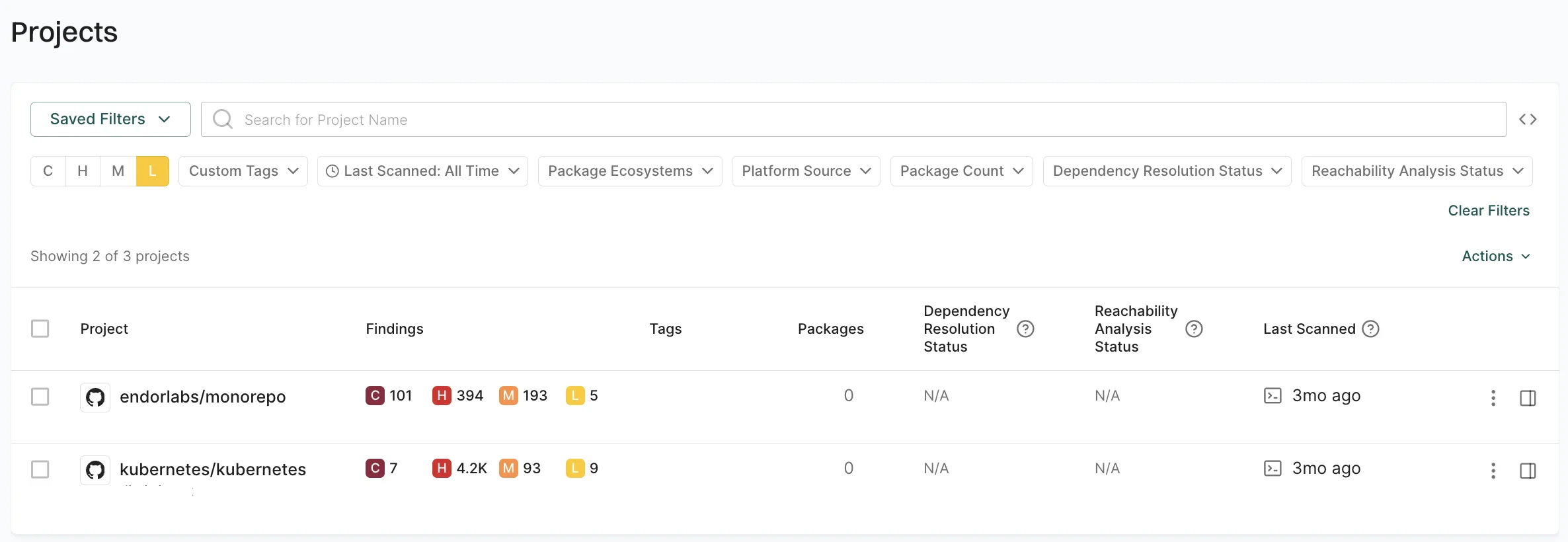
Filter projects by package ecosystem
Use package ecosystem filters to segment projects by programming language or package management system for targeted security policies such as stricter vulnerability thresholds for JavaScript projects or specific license compliance checks for Java applications. For example, to focus on PHP projects for a security assessment, use thePackage Ecosystems contains: Packagist filter.
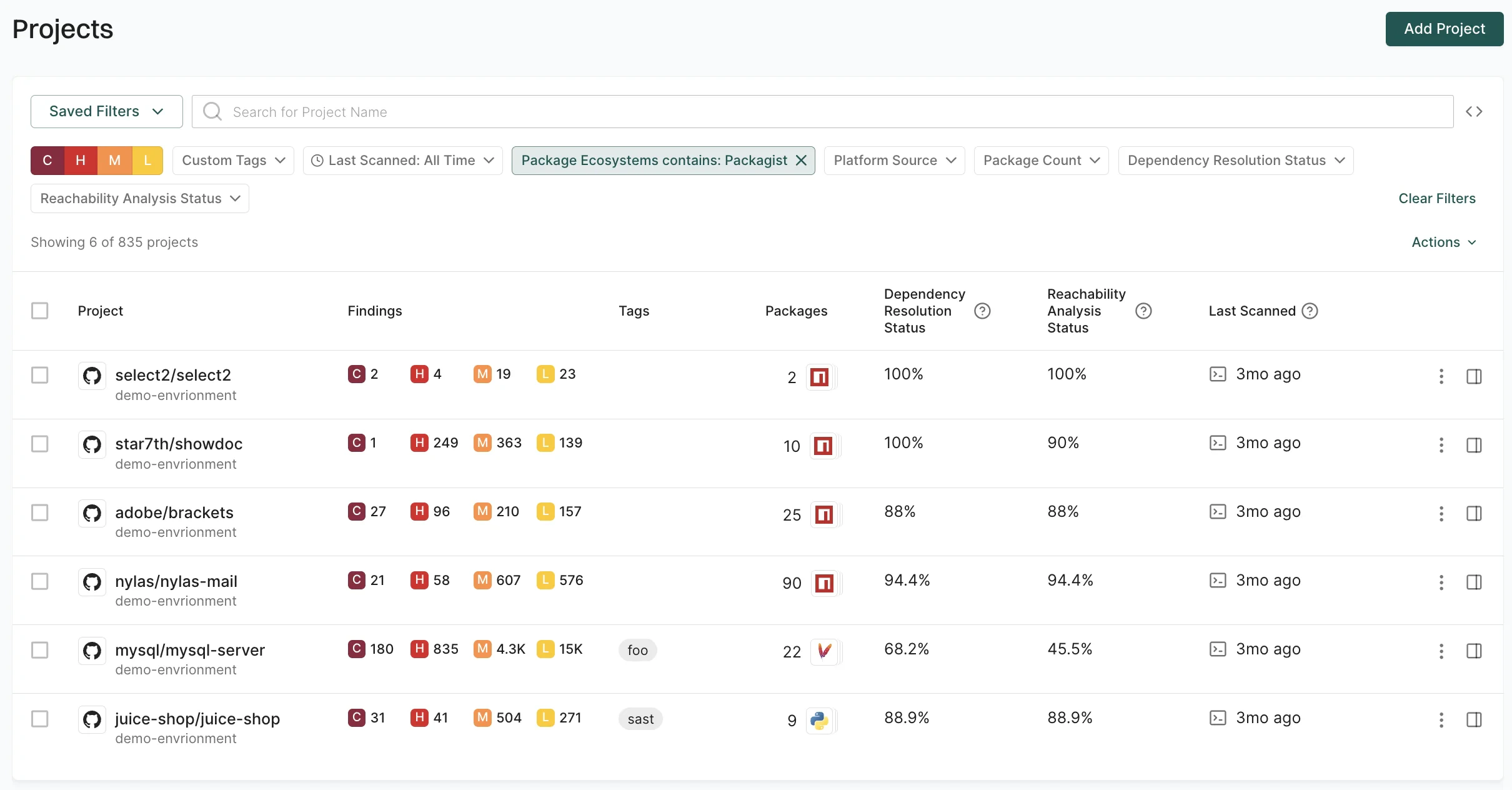
Filter projects by source platform
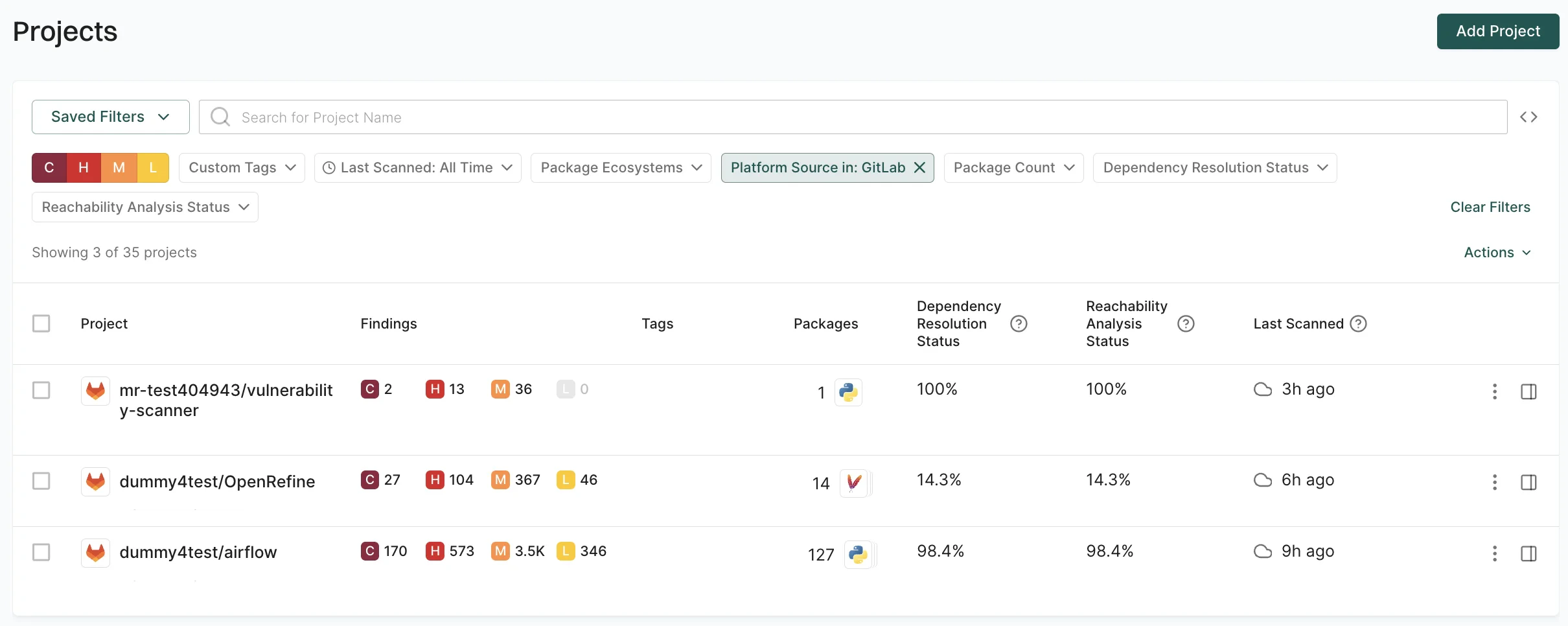
Use platform source filters to segment projects by their source platform and correlate findings with platform-native security tools like GitHub’s Dependabot alerts or GitLab’s vulnerability scanning. For example, to identify projects analyzed from GitLab, use thePlatform Source in: GitLab filter.
Filter projects by dependency resolution quality
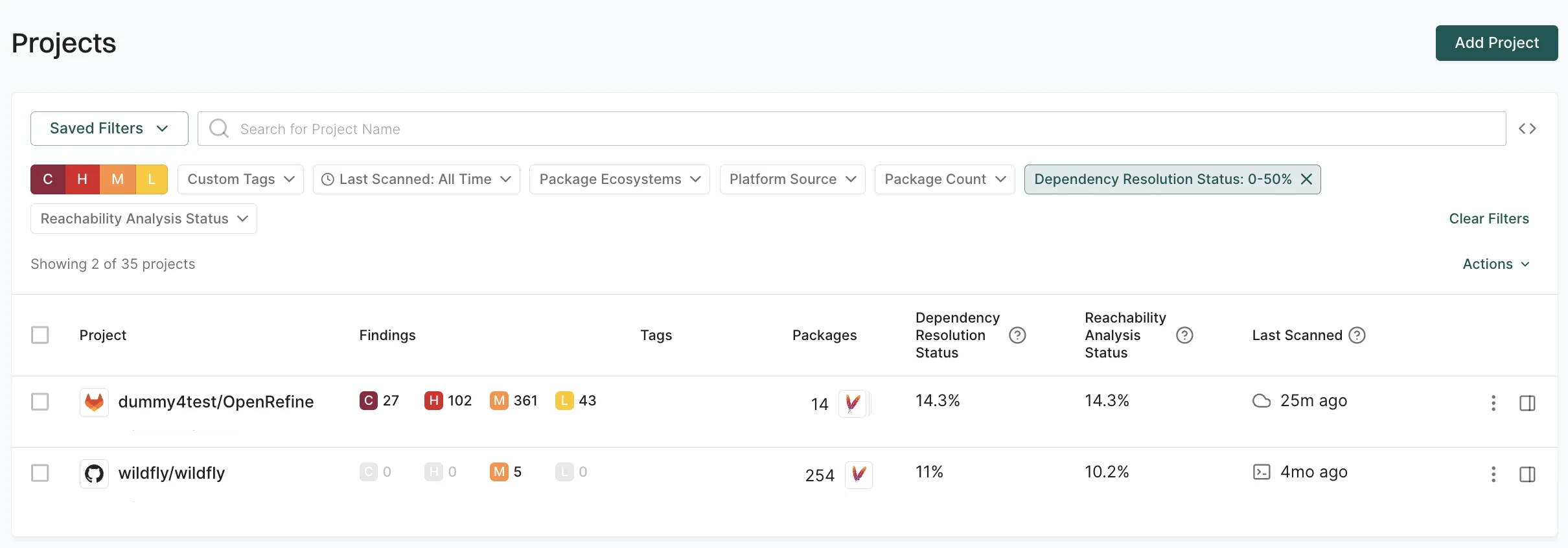
Use dependency resolution status to identify projects with resolution issues that impact security analysis accuracy. You can filter by a single value or a range of percentages. For example, to identify projects with poor dependency resolution, use the Range filter to find projects withDependency Resolution Status greater than 0% and less than 50%.
Filter projects by scan timestamp
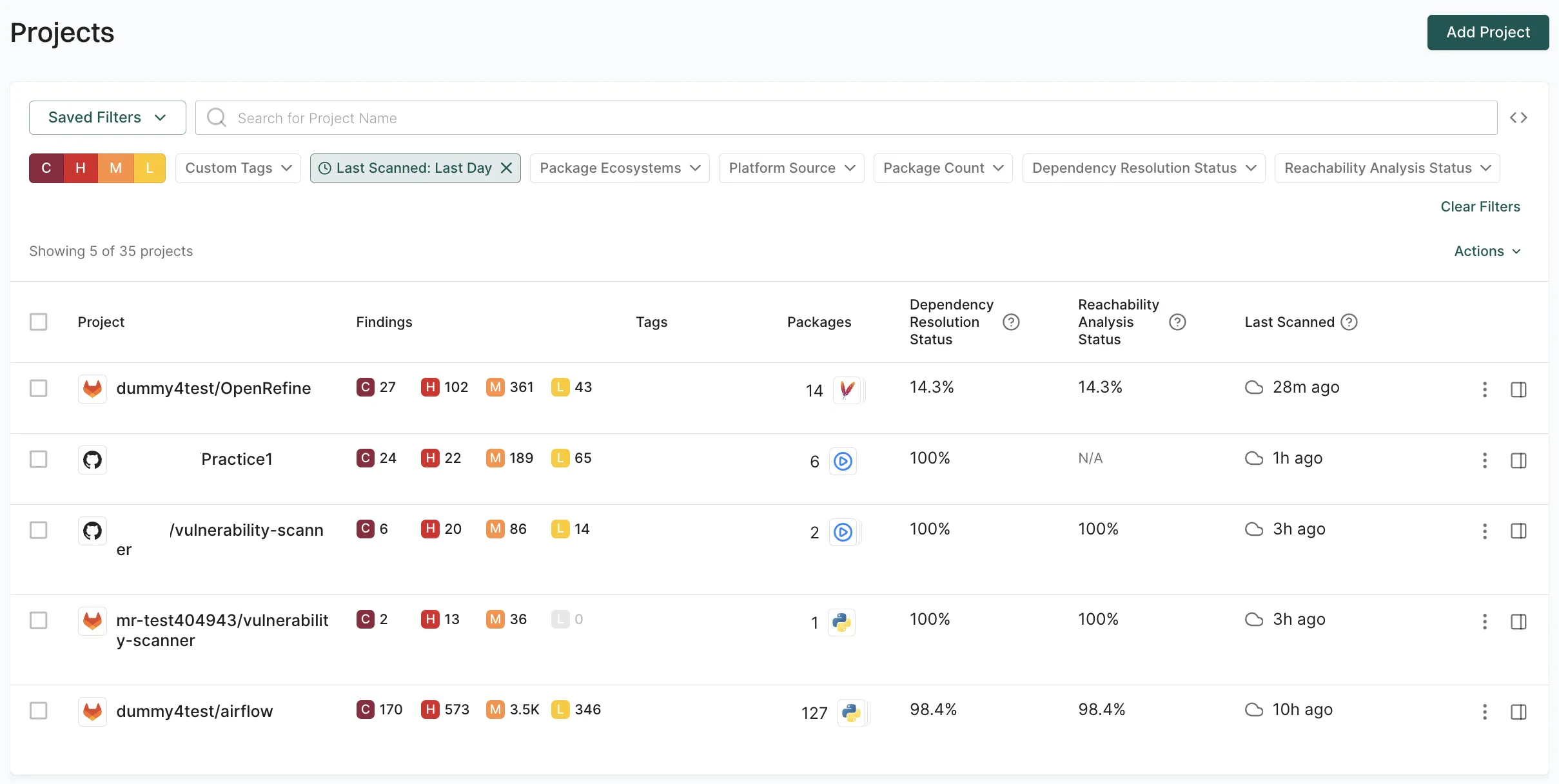
Use last scanned filters to identify projects with stale security data that require fresh scans for current security posture. You can select from predefined time ranges or use the calendar to select a specific date. For example, to identify projects scanned within the last 24 hours, use theLast Scanned: Last Day filter.
Filter projects by complexity
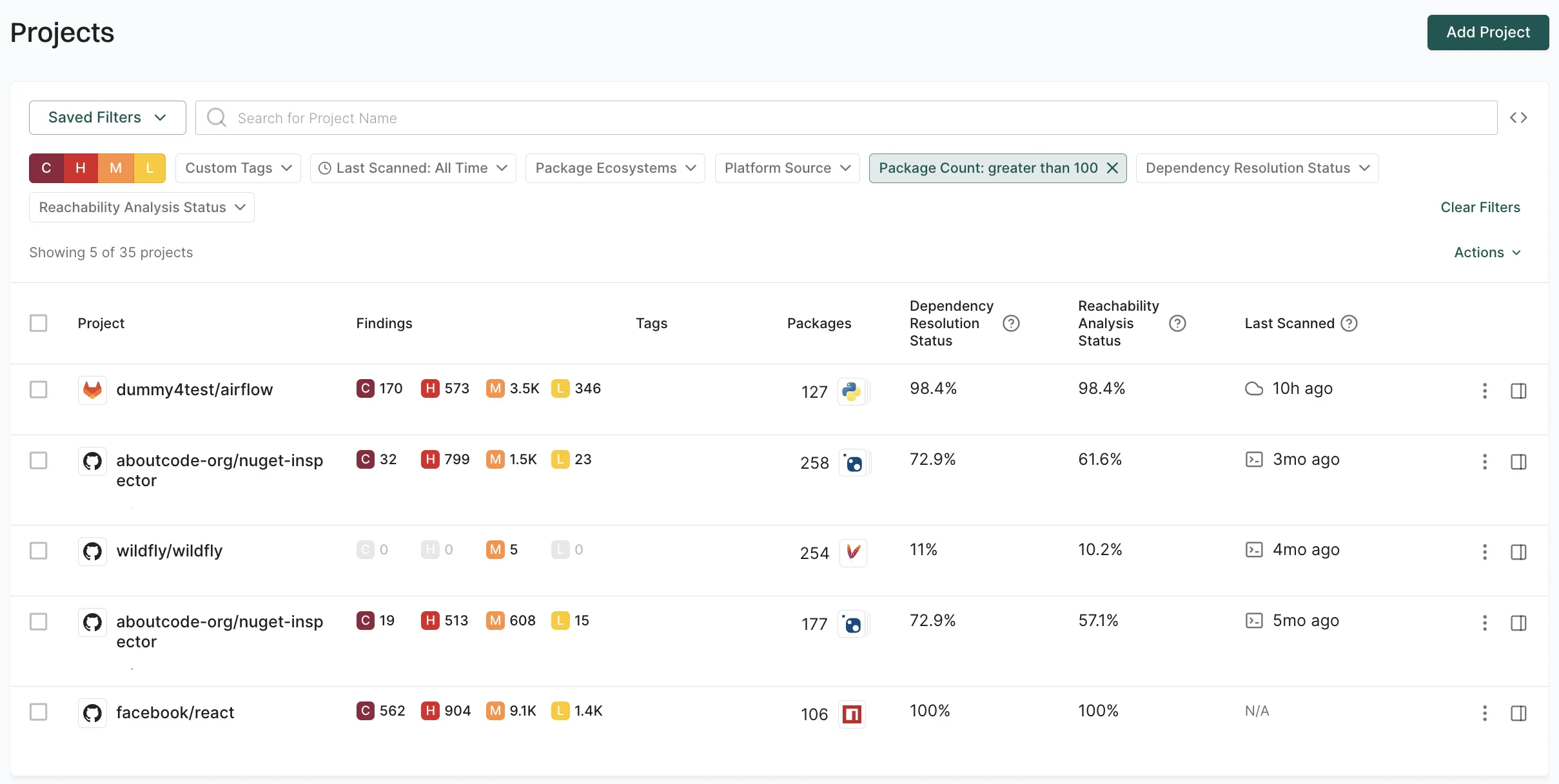
Identify projects based on their size and complexity, which may require different levels of security attention and resources. For example, to focus on large projects with extensive dependency trees, use thePackage Count: greater than 100 filter.
Filter projects by reachability analysis status
Use reachability analysis status to identify projects based on the success rate of call graph generation and reachability analysis. You can filter by a single value or a range of percentages. For example, to identify projects with successful reachability analysis, use theReachability Analysis Status greater than or equal to: 90% filter.
Filter projects using API
For complex queries, use the advanced filter syntax to combine multiple attributes and apply logical operators. The following table lists the available attributes for project filters.API filter use cases
The following examples demonstrate how to combine these attributes for common security and compliance workflows.Identify high-risk GitHub projects
Identify high-risk GitHub projects
Find GitHub projects with more than 5 critical findings and a reachability analysis status below 80%.
Audit stale projects with risks
Audit stale projects with risks
Identify projects not scanned in the last 7 days that still have outdated dependencies.
Identify projects with low dependency resolution quality
Identify projects with low dependency resolution quality
Find projects where dependency resolution is below 90%, which may indicate incomplete security analysis.
Find large projects with high vulnerability density
Find large projects with high vulnerability density
Identify projects with more than 100 total packages that also have a high number of critical vulnerabilities.
Audit projects with high triaged findings
Audit projects with high triaged findings
Find projects where more than 50 findings have been dismissed, useful for auditing triage quality.
Triage critical vulnerabilities by ecosystem
Triage critical vulnerabilities by ecosystem
Focus on npm projects with a high number of critical vulnerabilities.